.png)
Reports and Refunds for SchoolGrid Clients
Use this guide to review inbound payments, locate individual transactions, process refunds, check card statements and understand your school’s weekly payouts.
Use the dashboard for a quick overview
1. Open the Dashboard
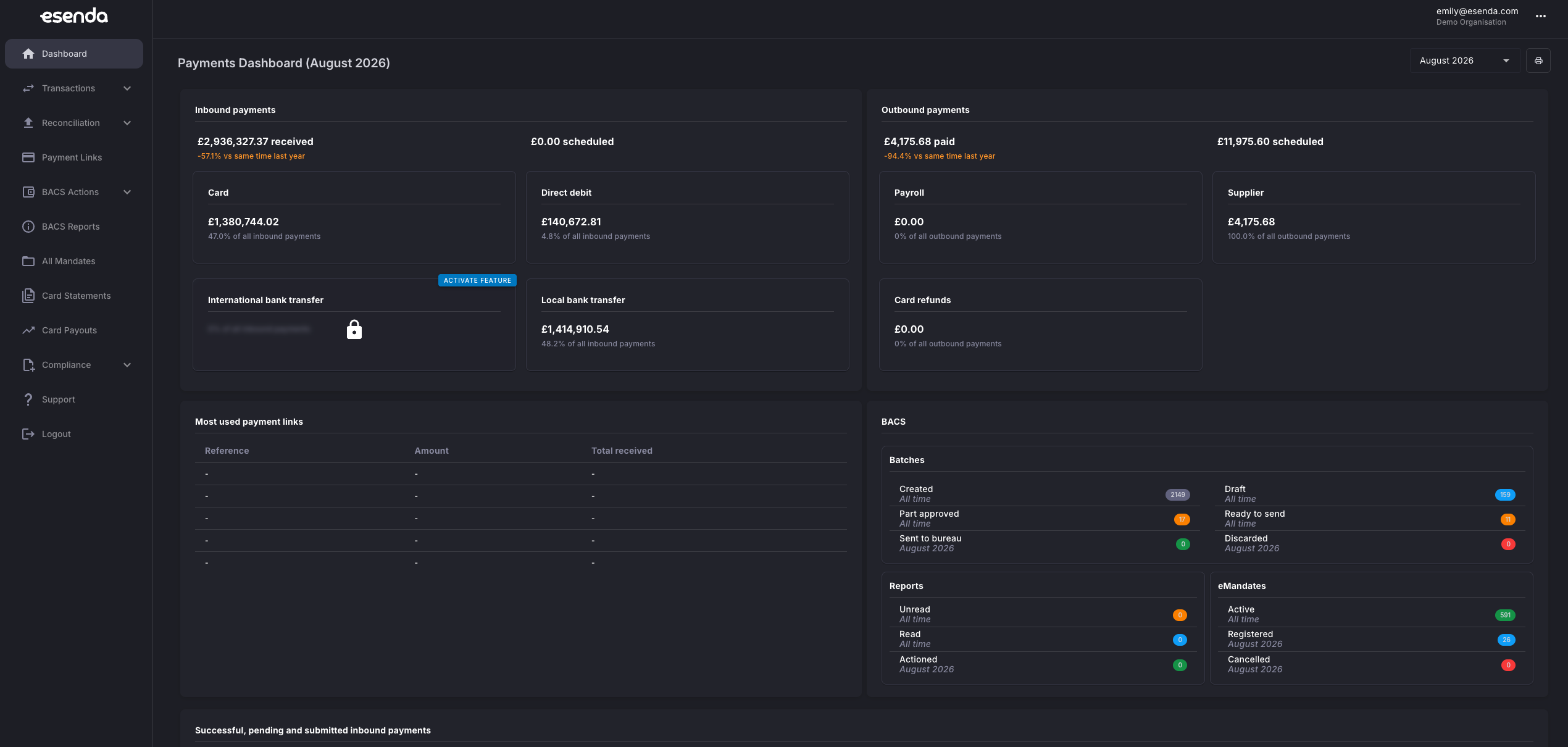
After signing in, the dashboard displays a summary of your inbound payments. Use the headline figures for an at-a-glance view of payment activity.
2. Review monthly payment trends
Scroll down to the inbound payments graph. This shows successful, pending and submitted payments month by month, helping you spot changes over time.
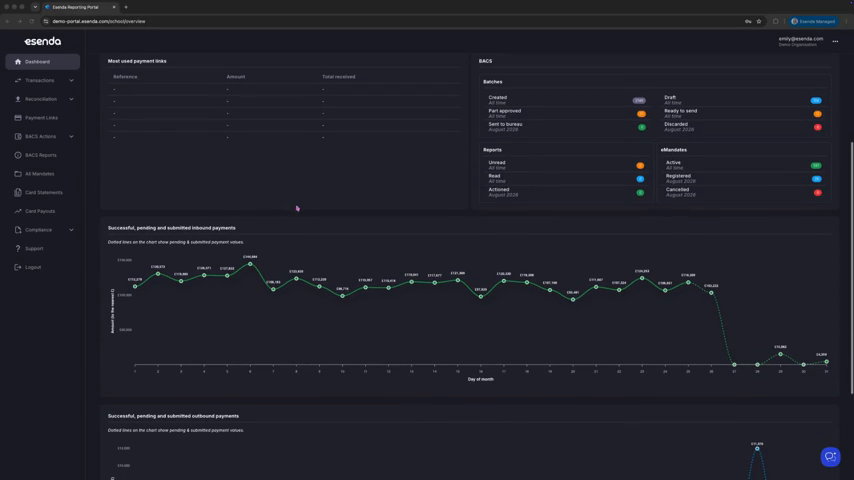
Monthly graph of successful, pending and submitted inbound payments
| Status tip: Successful payments have completed. Pending or submitted payments are still moving through the payment process and should not be treated as fully received until their status updates. |
Find a payment and issue a refund
1. Open Payments
From the left-hand navigation, select Transactions, then Payments. This page lists the payments your school has received through SchoolGrid.
2. Search for the transaction
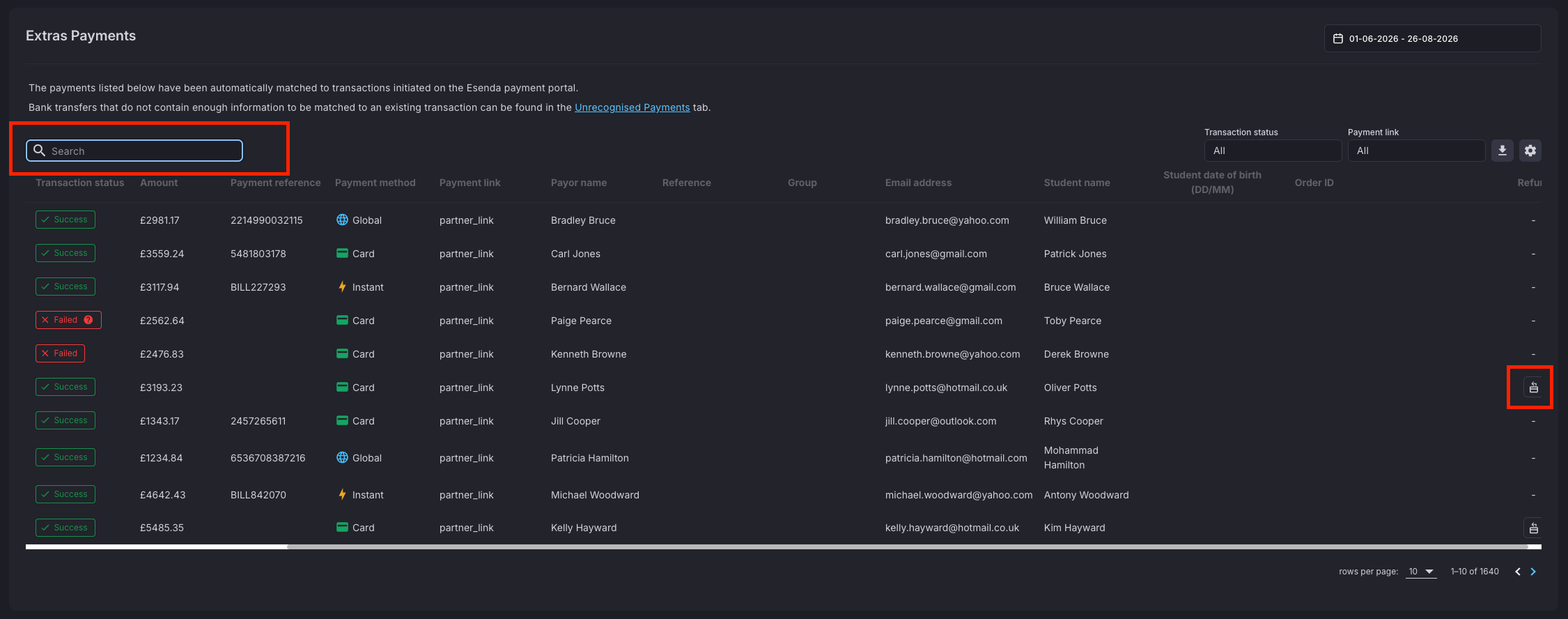
Enter the parent’s or student’s name in the search bar. Check the matching record, then scroll horizontally to the right-hand side of the table to find the refund action.
3. Choose the refund amount
Open the refund option. To refund the whole payment, select the full amount. For a partial refund, enter the exact amount that needs to be returned.
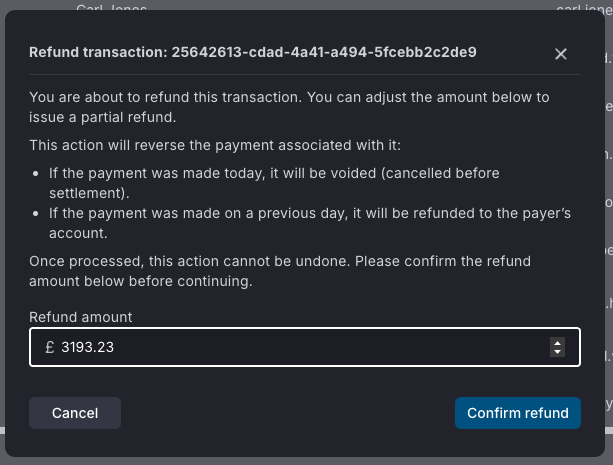
| Check before confirming: Make sure you have selected the correct transaction and refund amount. A partial refund must not exceed the refundable amount shown in the dialogue. |
Use Card Statements to answer payment queries
All card payment and refund activity is reflected in the Card Statements area. Use it when a parent contacts the school to check what has happened to a payment.
1. Open Card Statements
Select Card Statements from the left-hand navigation.
2. Search by name
Enter the parent’s name in the search bar to locate the relevant card transactions.
3. Review the result
Check the transaction status and amount to confirm whether the payment was received or refunded.
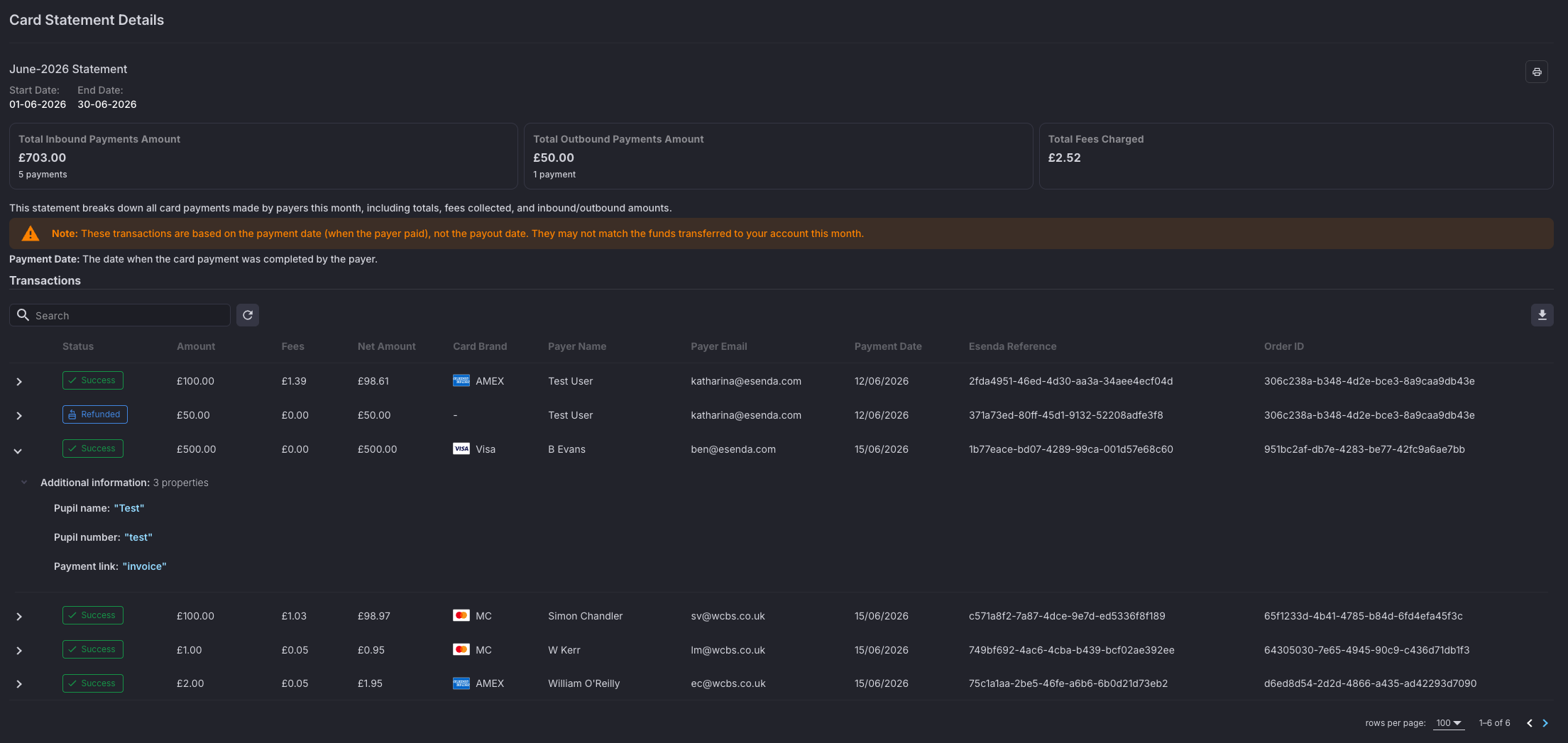
| When responding to a parent: Use the transaction record and current status shown in esenda. If there are several matching records, verify the date and amount before confirming the outcome. |
Review Weekly Payouts
Understand what has been paid out to each school
Card payouts are made once a week, on Mondays. The Card Payouts area shows each weekly payout and lets you open the detailed report behind it.
⚠️ If your client has multiple schools within it, at the moment we send you a report directly each week, showing which transaction relates to which school. But soon, you'll be able to see that in here too.
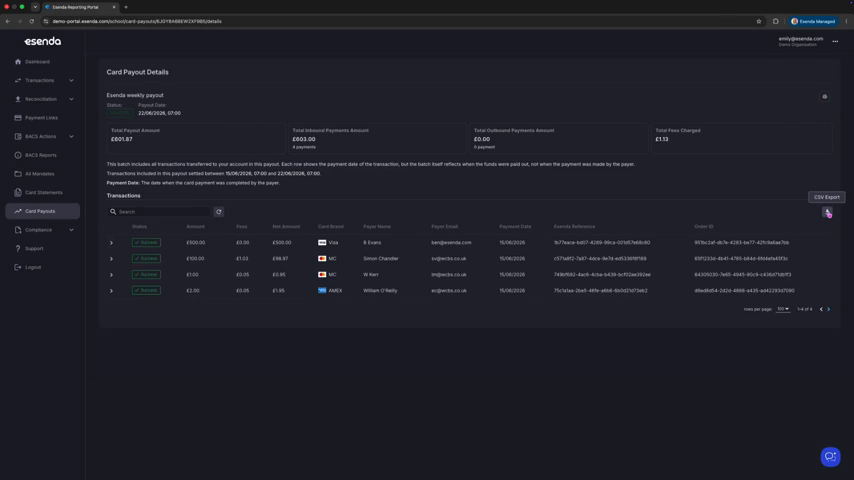
Print or export the report
Use the print or export controls if you need to share the report, retain a copy or carry out further drill-down and analysis.
| Exported data: The exported report can be opened in spreadsheet software for filtering, reconciliation and further analysis. |